Pickleball Tayo
PLAYER GUIDE · 5 MIN READ

Getting started
with Pickleball Tayo.

Create your player account, explore open play, and host a session of your own. Follow the steps below to get on court.

START HERE

Find your way around Tayo.

Start with your account, then use these guides to find courts, join games, meet your community, and host sessions. Follow each guide in order; its screenshots sit beside the relevant instructions.

↗

Sign up for Tayo

Follow these steps to create your player account and finish setting up your profile.

Open the sign-up page
01

Open the sign-up form

Go to the Pickleball Tayo sign-up page. The form has Sign in and Sign up tabs. If Sign in is selected, choose Sign up to display the account form.

02

Enter your name and email

Both fields are required. Use an email address in a standard format, such as name@example.com. If the form flags the email, check for a missing “@” or domain ending.

03

Create a password

Password is required and must be at least 8 characters. Select the eye icon to show or hide what you typed, then check for typos before continuing.

04

Choose your starting skill level

Select a level from the Skill level menu; the form requires a choice. If you are unsure, open the question-mark help beside the label. Your starting level is set once, so choose the closest match. Your Tayo Rating changes through recorded games.

05

Add your DUPR ID if you have one

This field is optional, so leave it blank if you do not have a DUPR ID. If you enter one, the field accepts up to 20 characters and formats the text in uppercase.

06

Create your account

Select Create account. If a required field is missing or invalid, return to the highlighted field and correct it. Follow any confirmation or verification prompt the site shows, and continue when the account is ready.

07

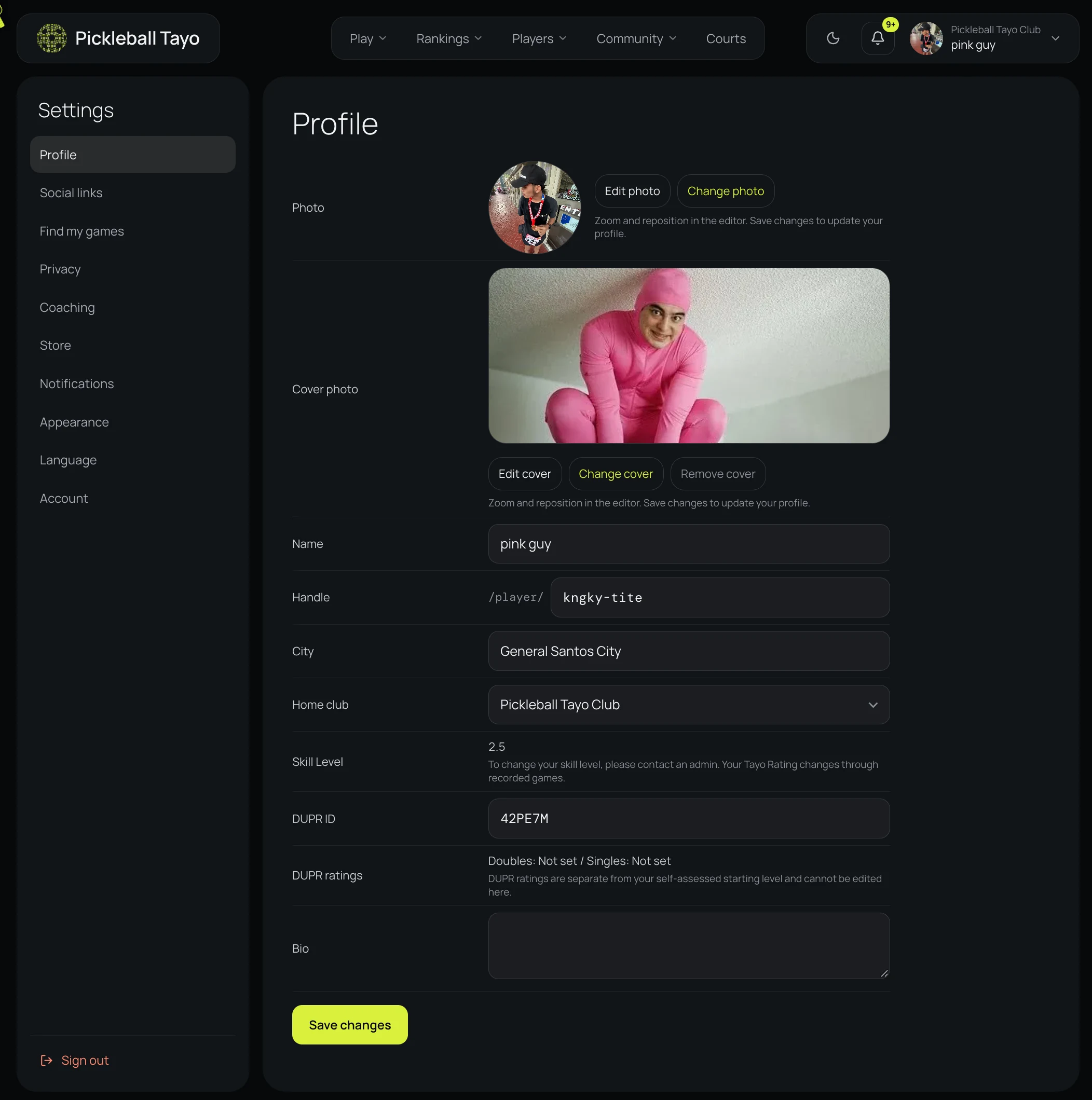
Complete your player profile

Add profile details such as your photo, city, and home club. Save your changes so players and clubs can recognize you.

08

Sign in and start exploring

Use the Sign in tab with the account you just created. Once signed in, find nearby courts or open play from the site navigation.
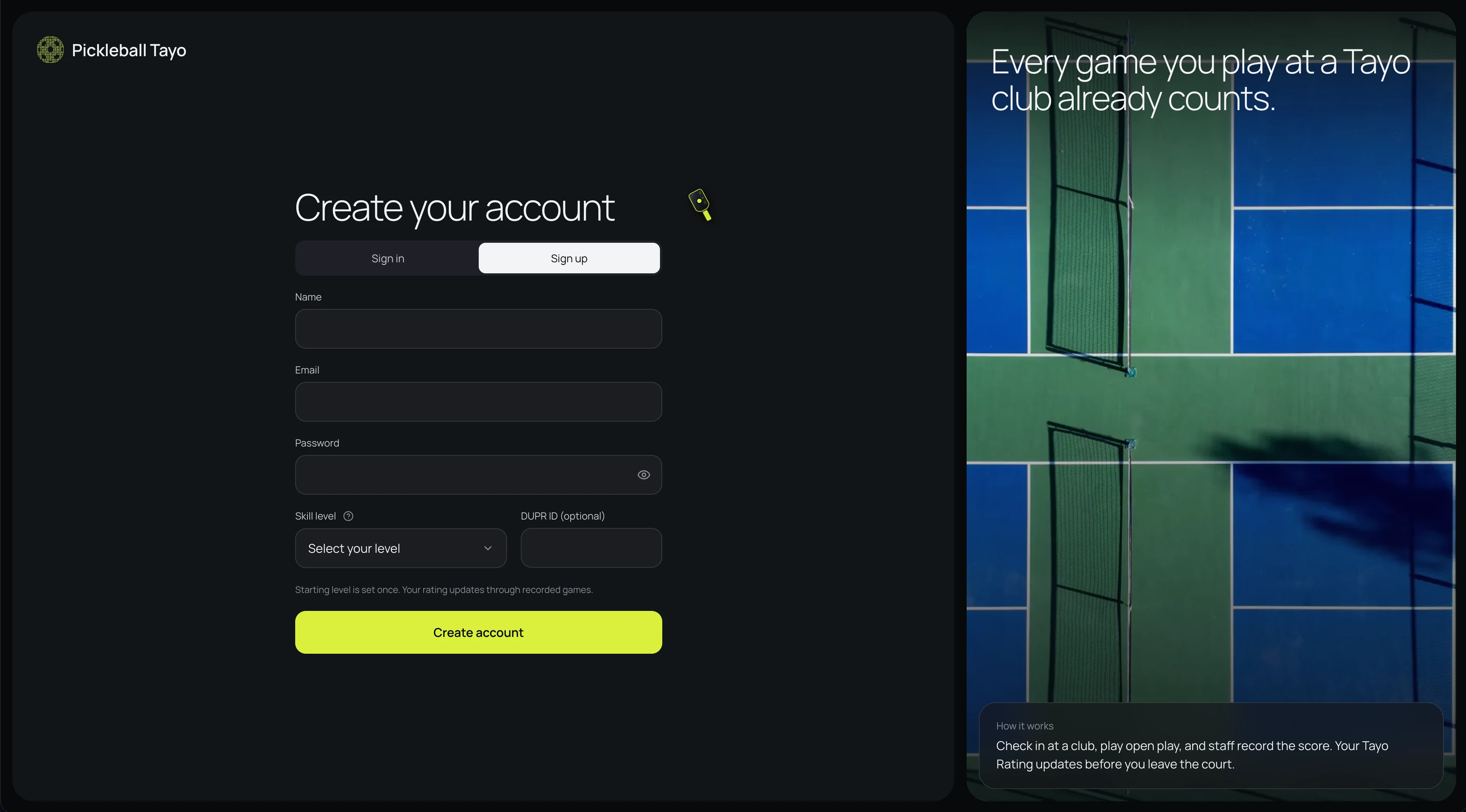
You can leave DUPR ID blank. Choose your starting skill level carefully because it is set once; your Tayo Rating updates through recorded games.
+

Create an open play

Schedule a session, set the court and player details, then share it with your players.

Browse open play
01

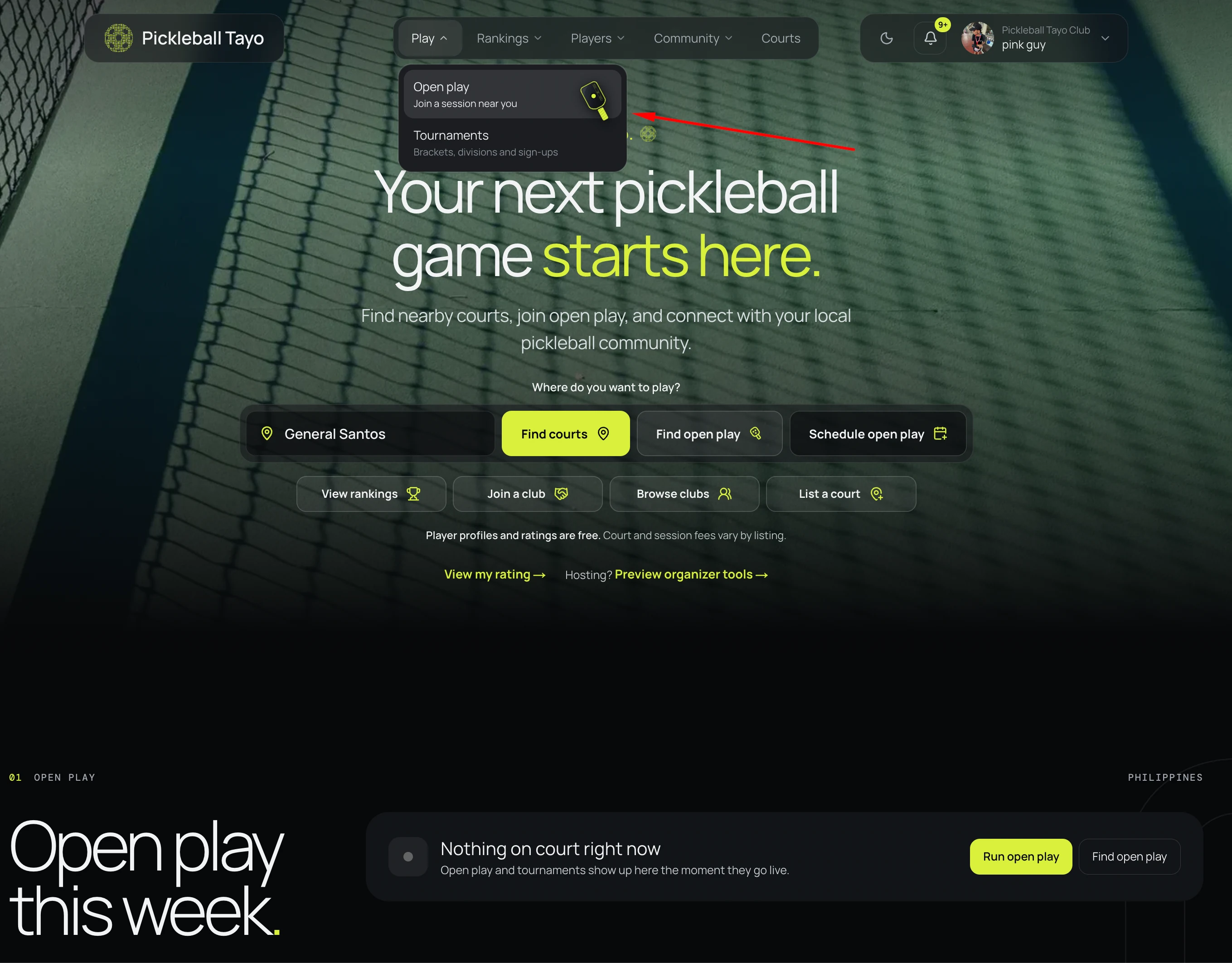
Open Play → Schedule open play

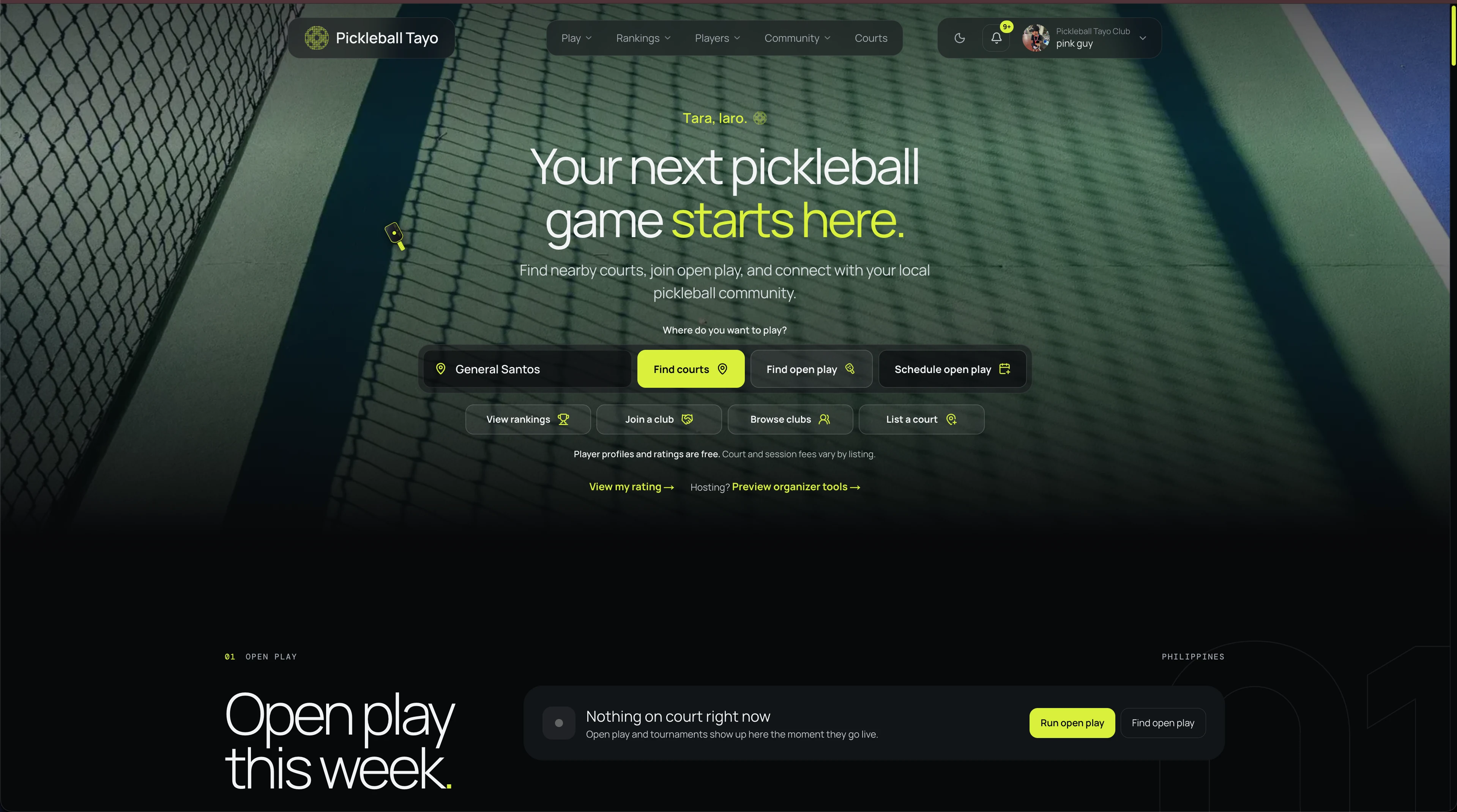
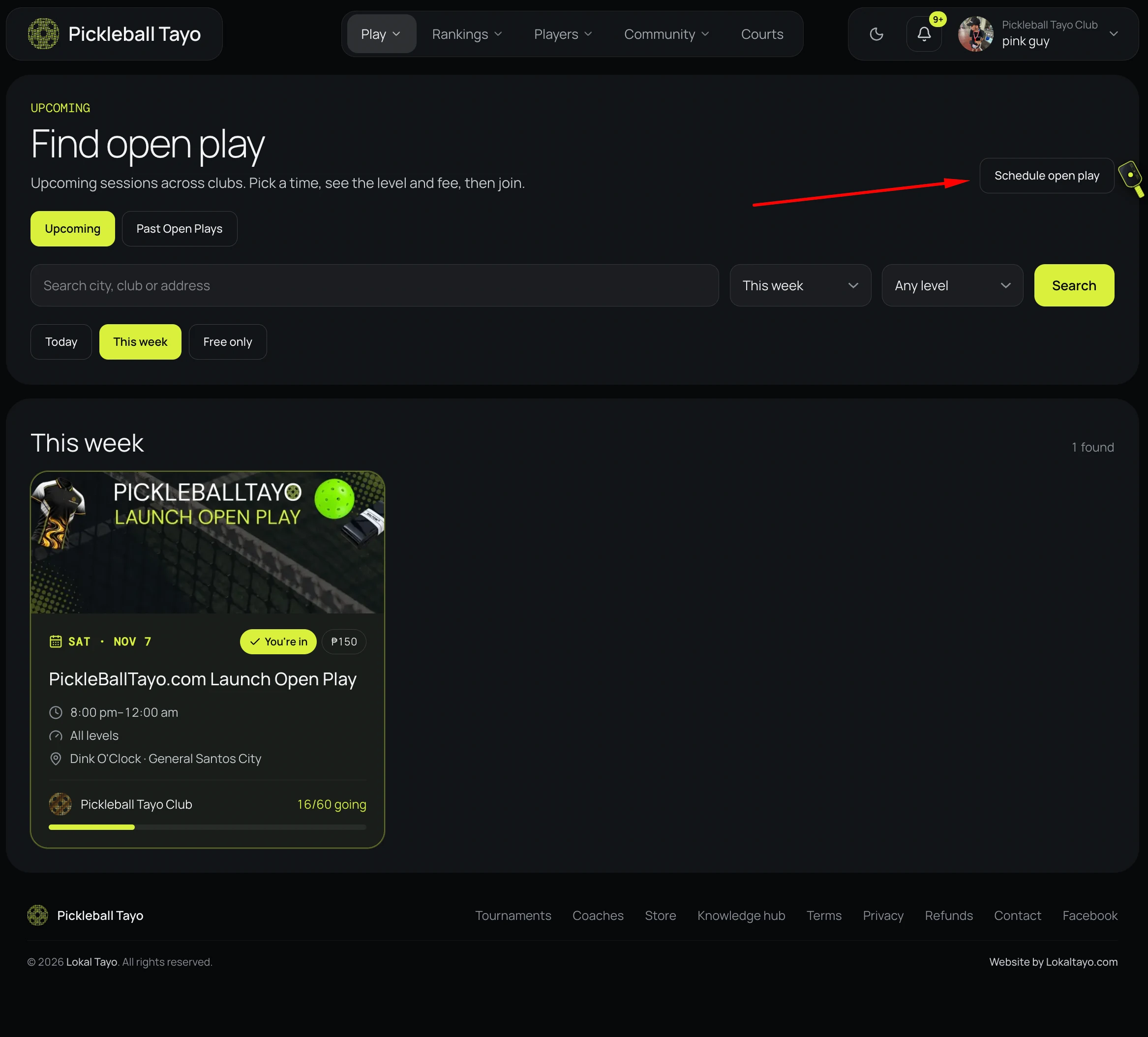
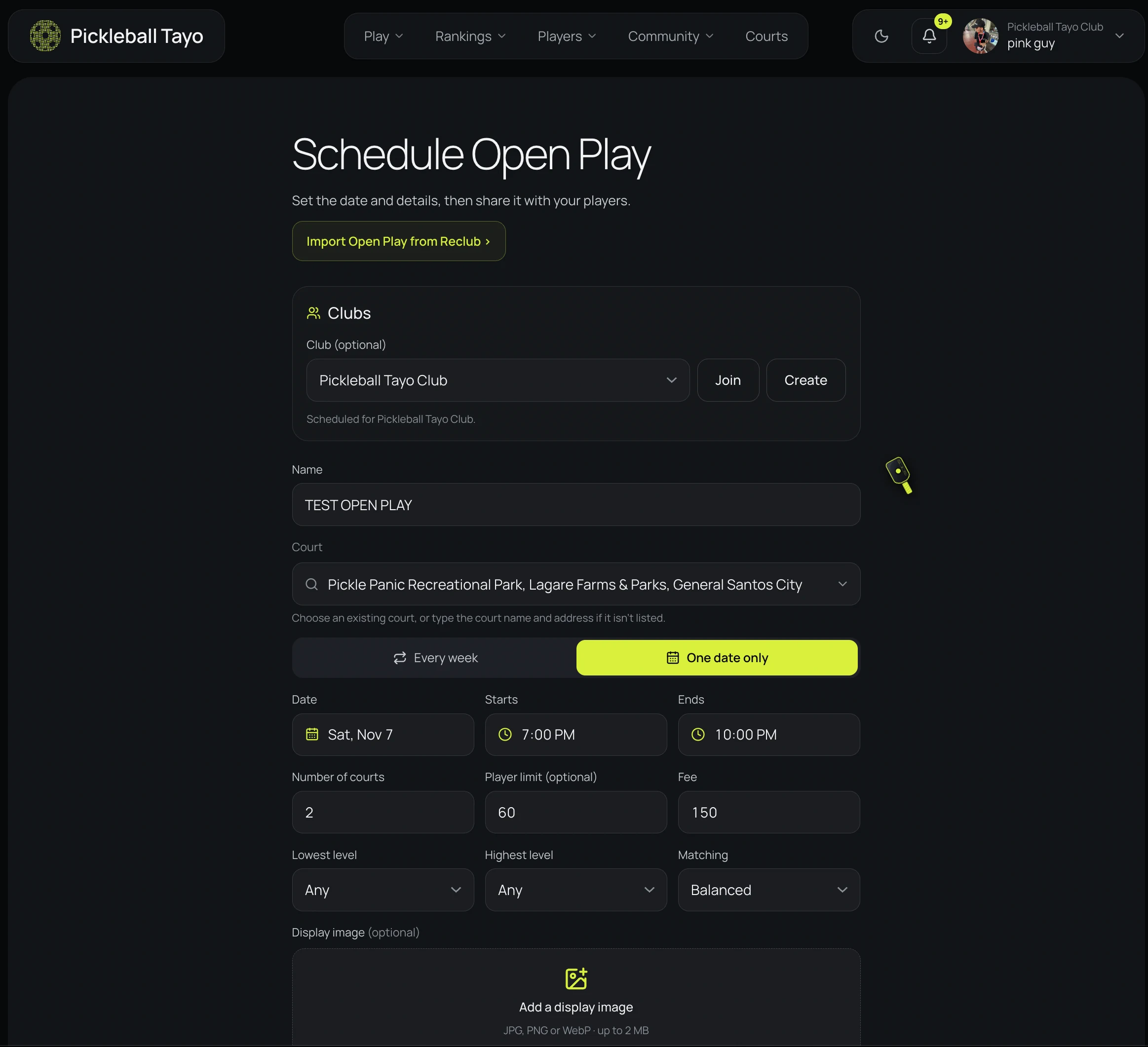
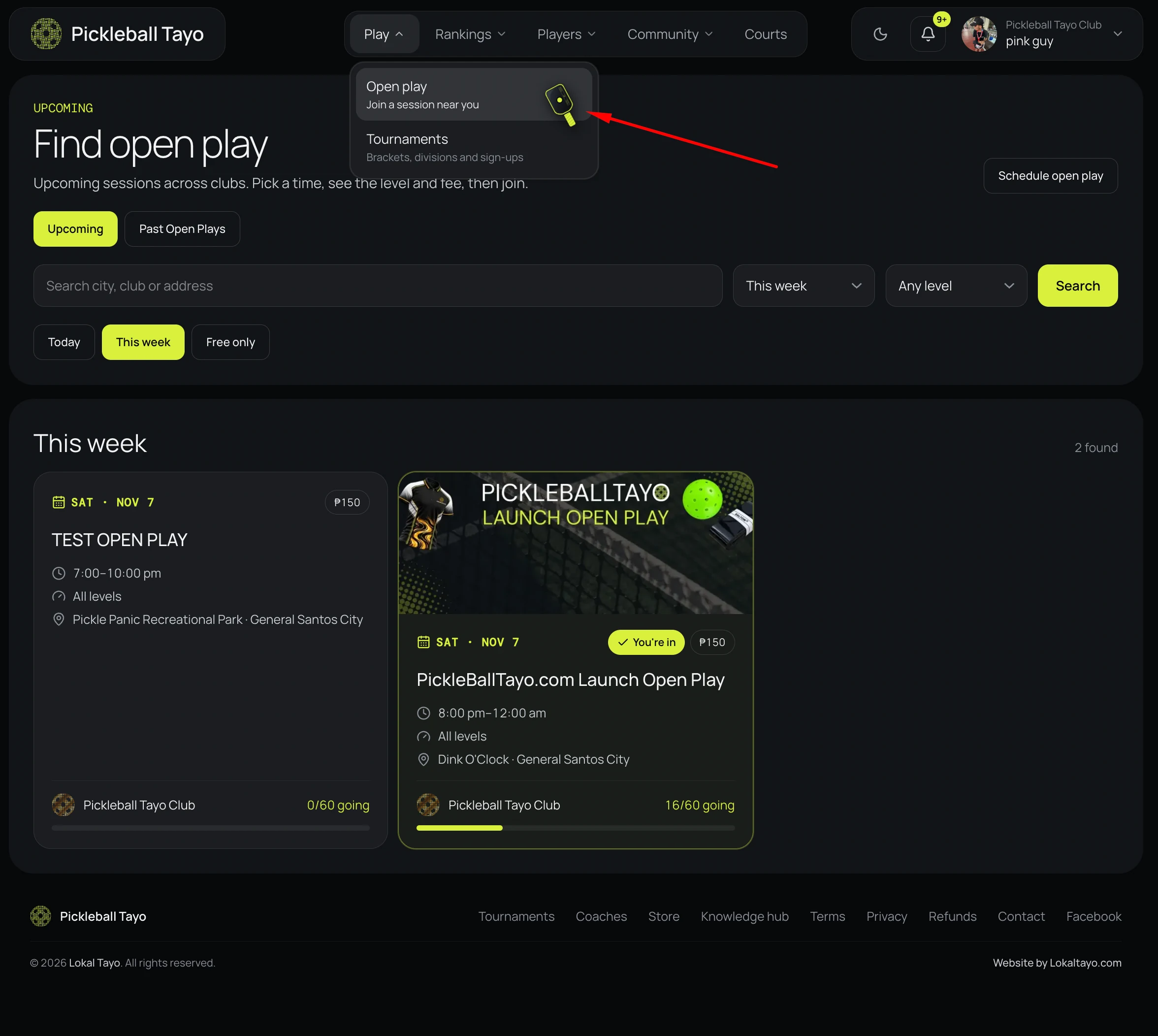
From the site navigation, open Play and choose Open play. On the Find open play page, select Schedule open play. Or use the direct scheduling link here.

Schedule an open play
02

Choose a club and name the session

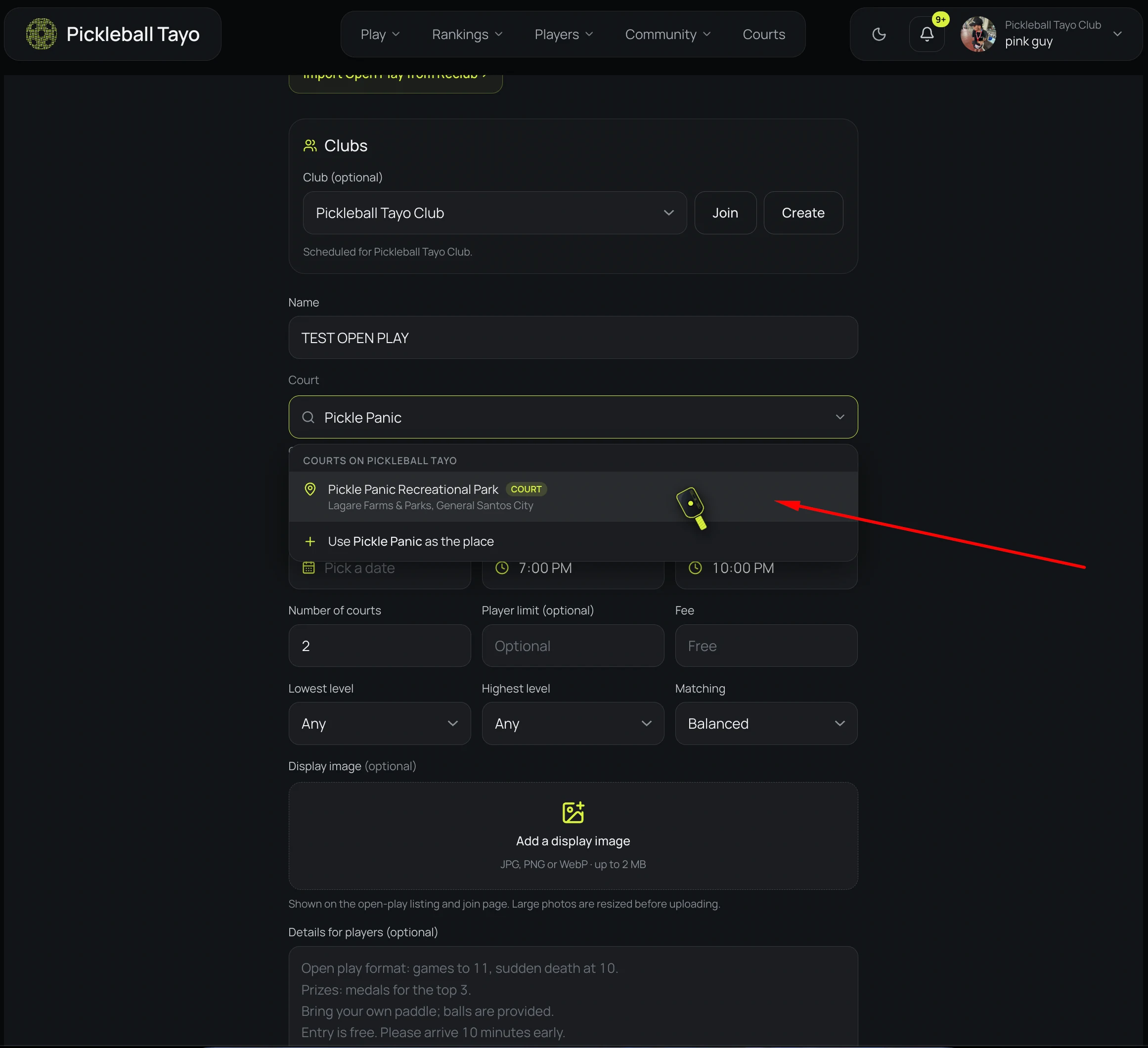
Choose a club from the Club menu to associate the session with it. If you are not hosting under a club, choose “No club — host under my name.” Enter a name players will recognize.

03

Select the court and schedule

Search for and select a listed court. If it is not listed, choose the option to use your entered place and provide its name and address. Choose Every week or One date only; for a one-time session, select the date. Set the start and end times.

04

Set game and player options

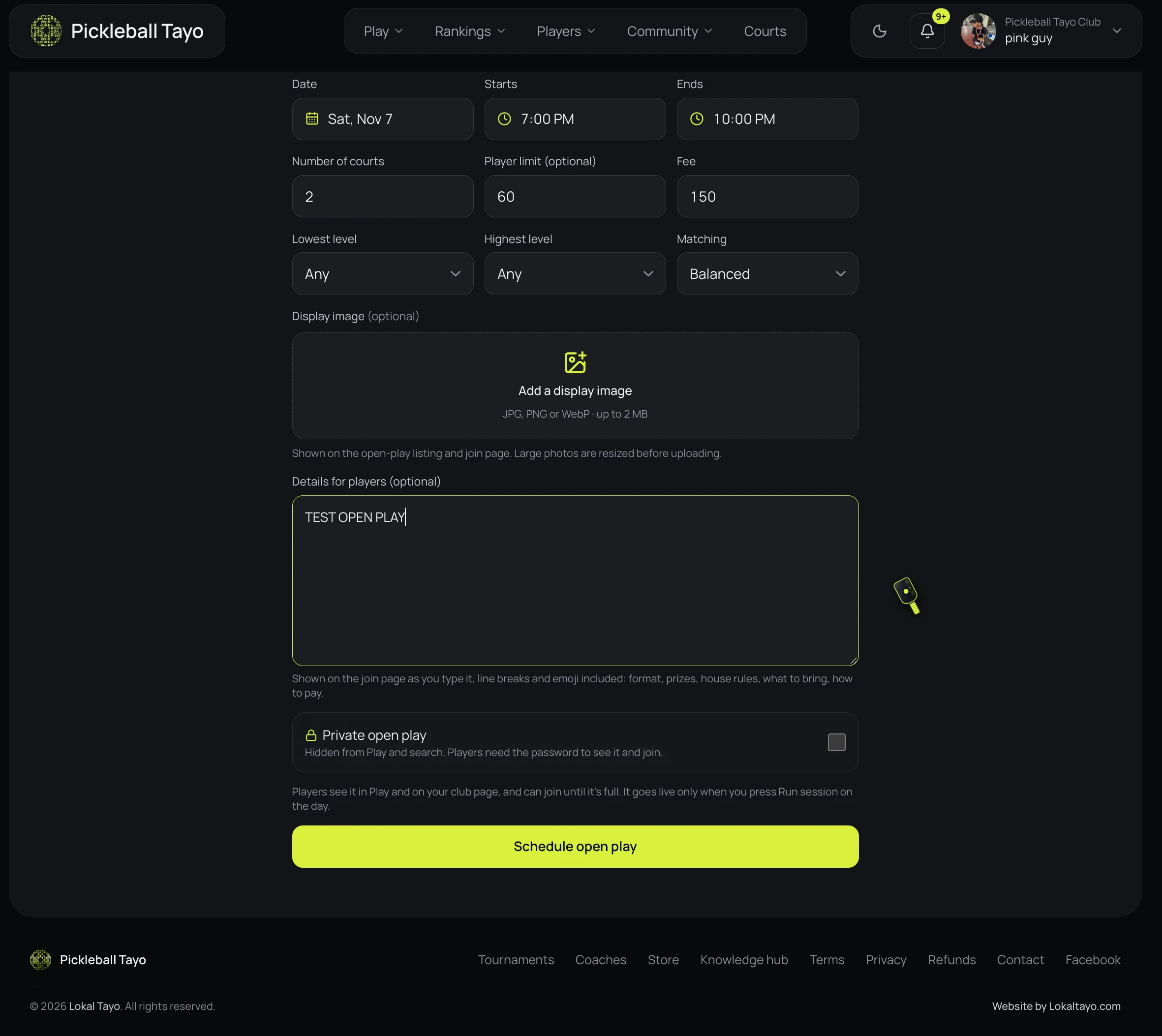
Enter the number of courts, optional player limit, and fee per player. Set the lowest and highest skill levels, then choose a matching style such as Balanced or Social mix.

05

Add details and schedule

Optionally upload a JPG, PNG, or WebP display image (up to 2 MB) and add details players should know. Turn on Private open play if you want it hidden from Play and search; players will need the password. Select Schedule open play to create the session.

06

Manage and run the session

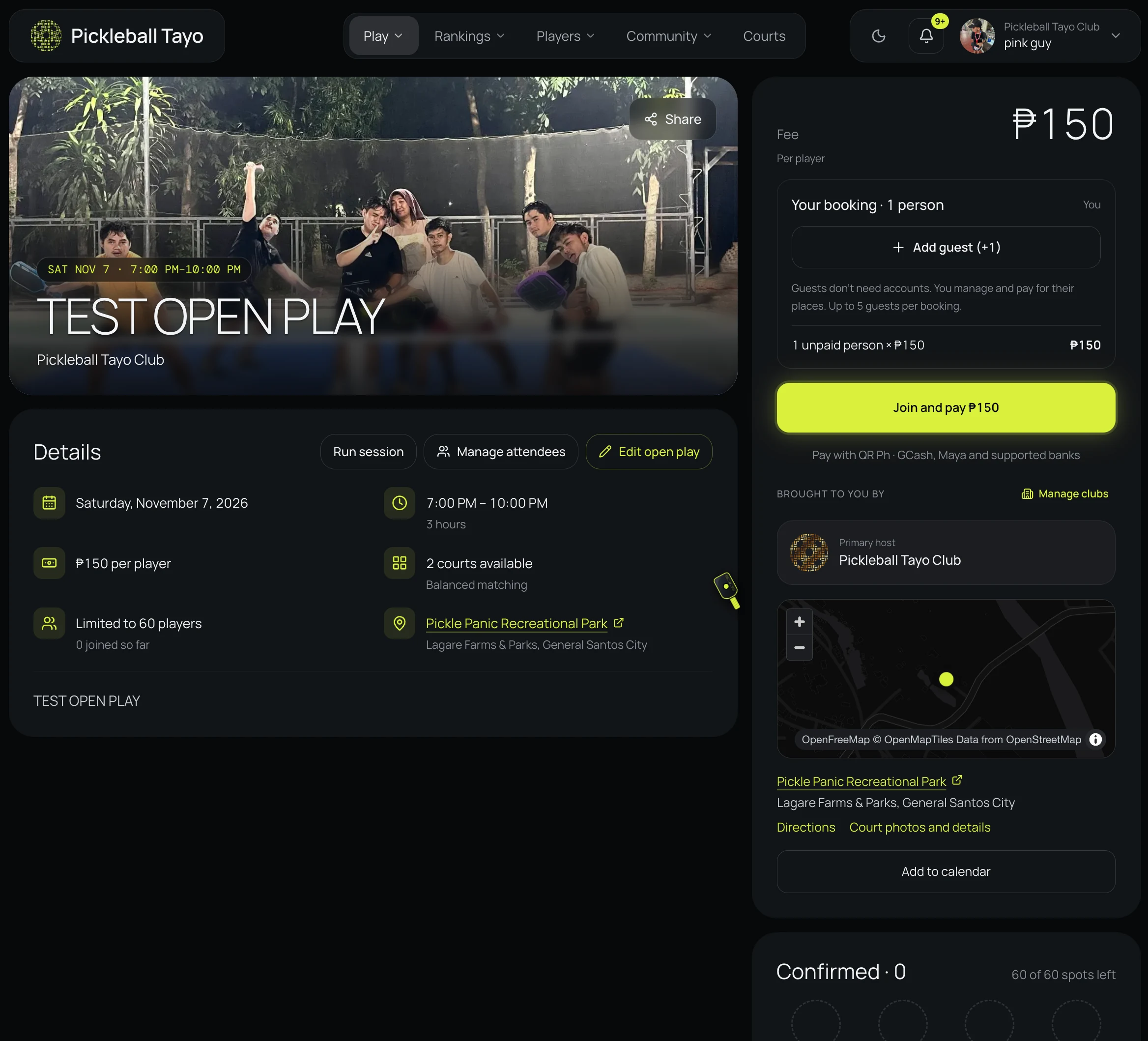
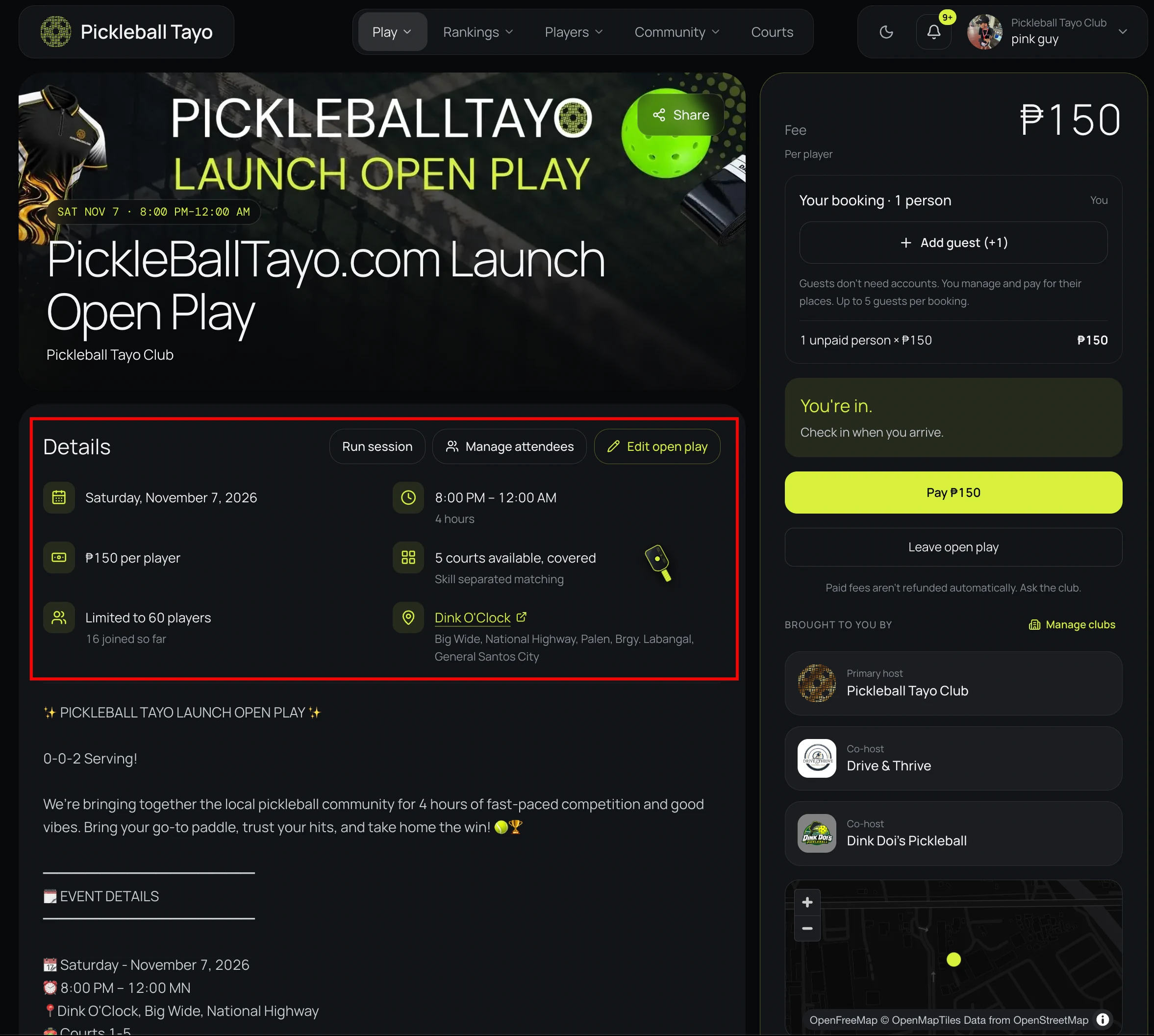
After scheduling, review the session page. Players can find it in Play and on your club page. Use Manage attendees or Edit open play as needed. To start playing, press Run session from the event page whenever you are ready.

Before scheduling, review the court and address, date and times, court count, player limit, fee, skill range, matching style, and privacy setting. Scheduling publishes the event and opens RSVPs; press Run session from its event page whenever you are ready to start.
⌖

Find a court

Browse nearby venues, compare listings, and open a court page for more information.

Browse courts
01

Open Courts

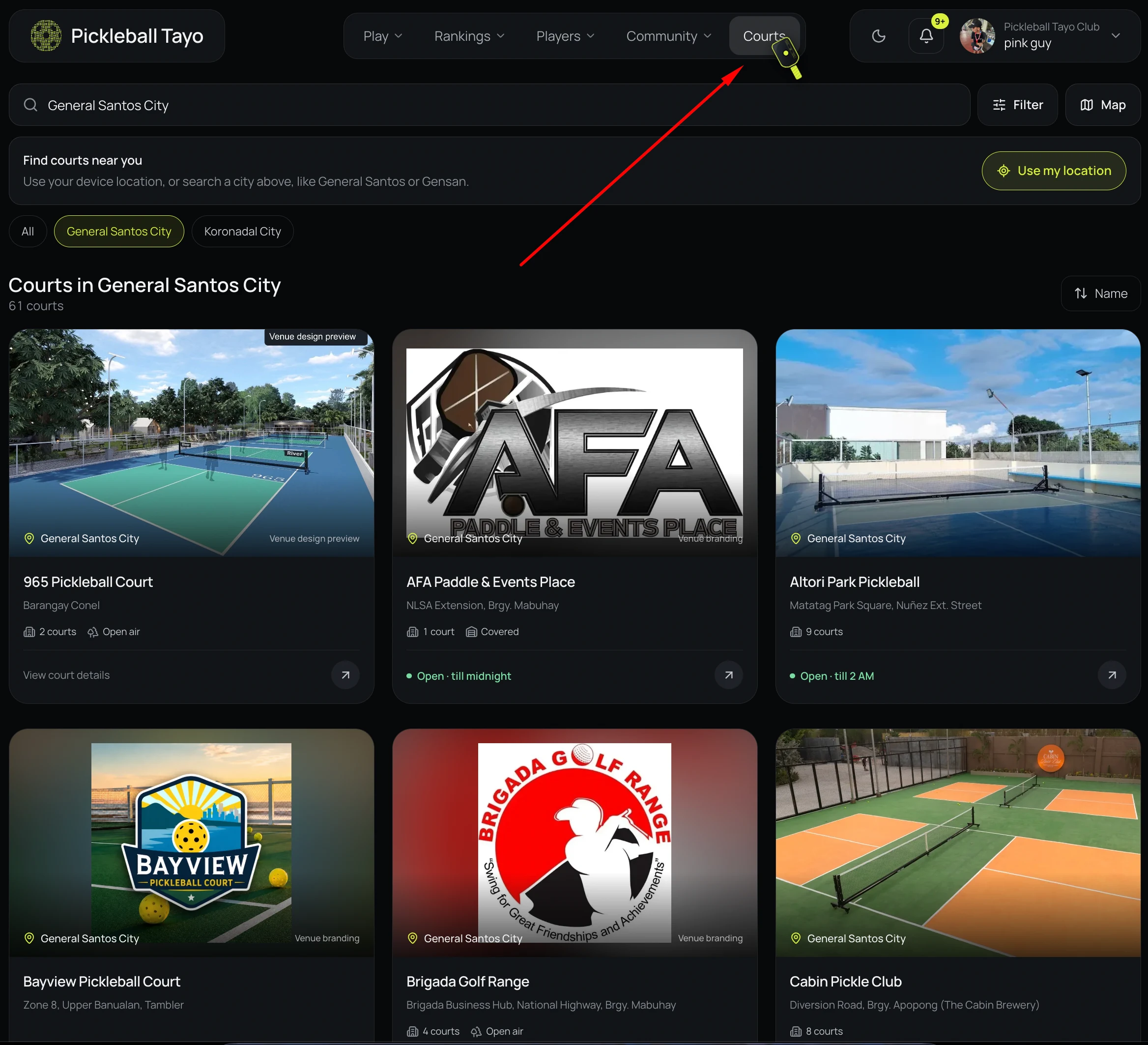
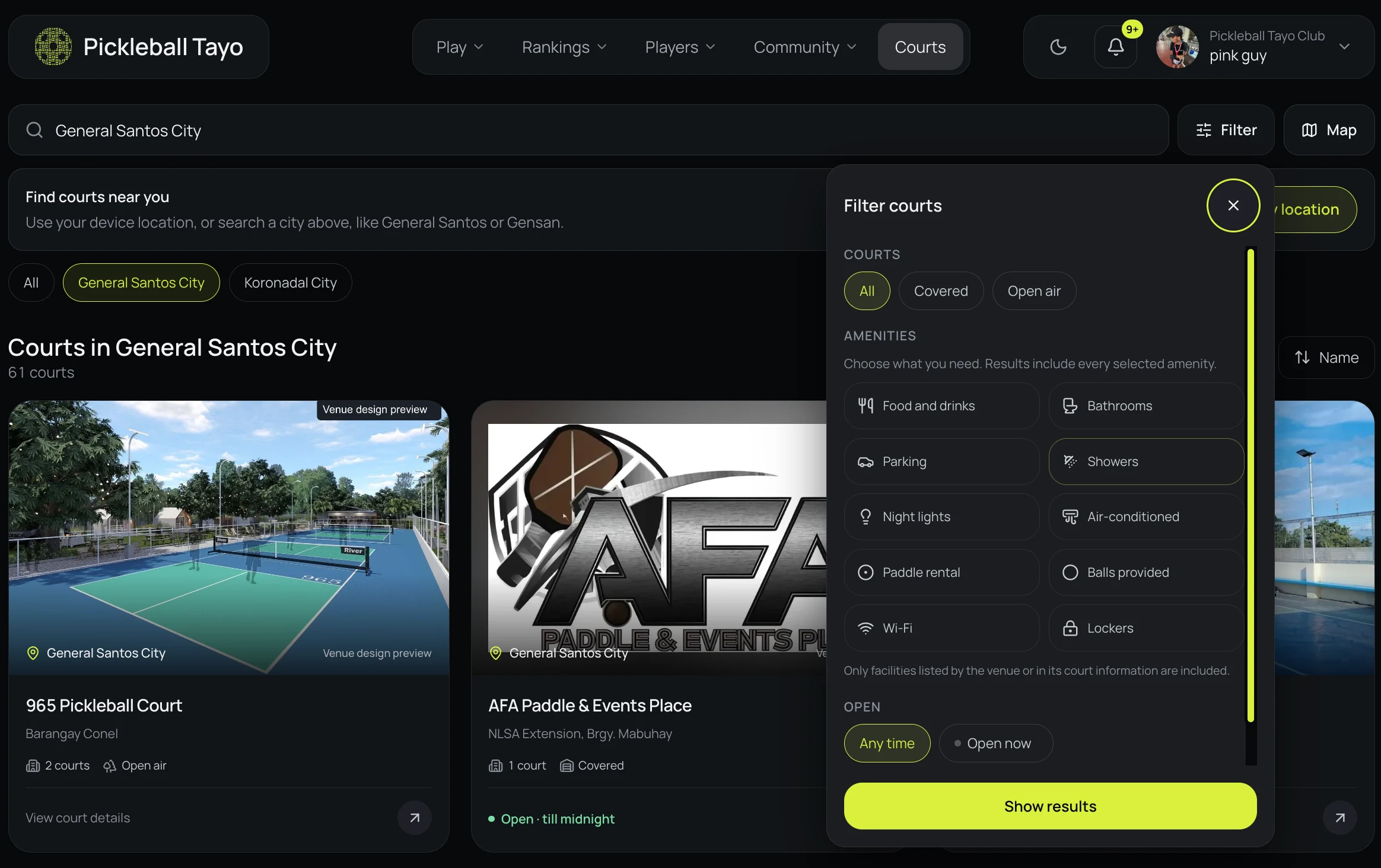
Choose Courts in the site navigation or use the Browse courts link above. The courts directory starts with a location search.

02

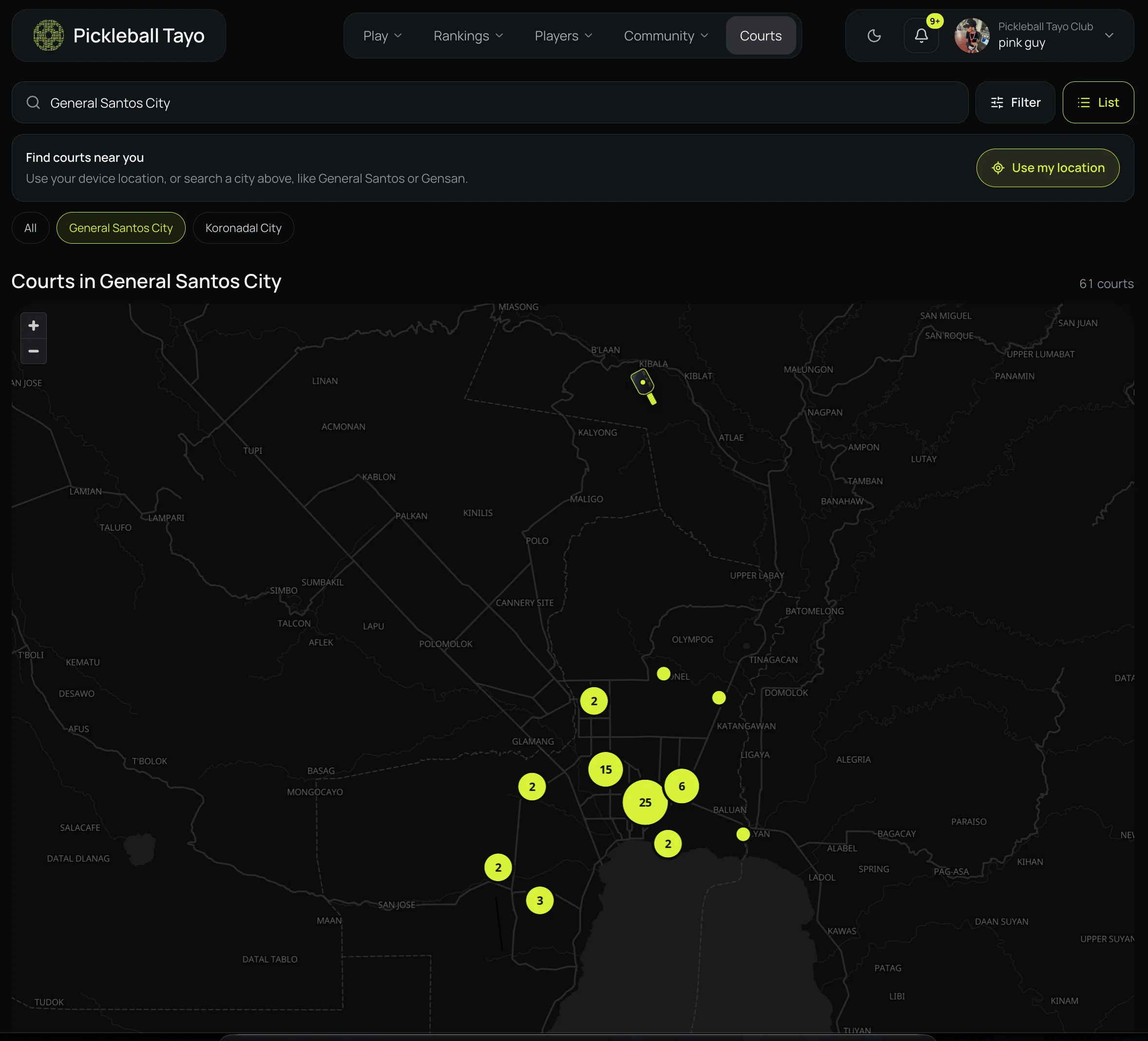
Choose a view and narrow the list

Search or choose a nearby city. Switch between the list and map, and sort listings by name or newest when those controls are available.

03

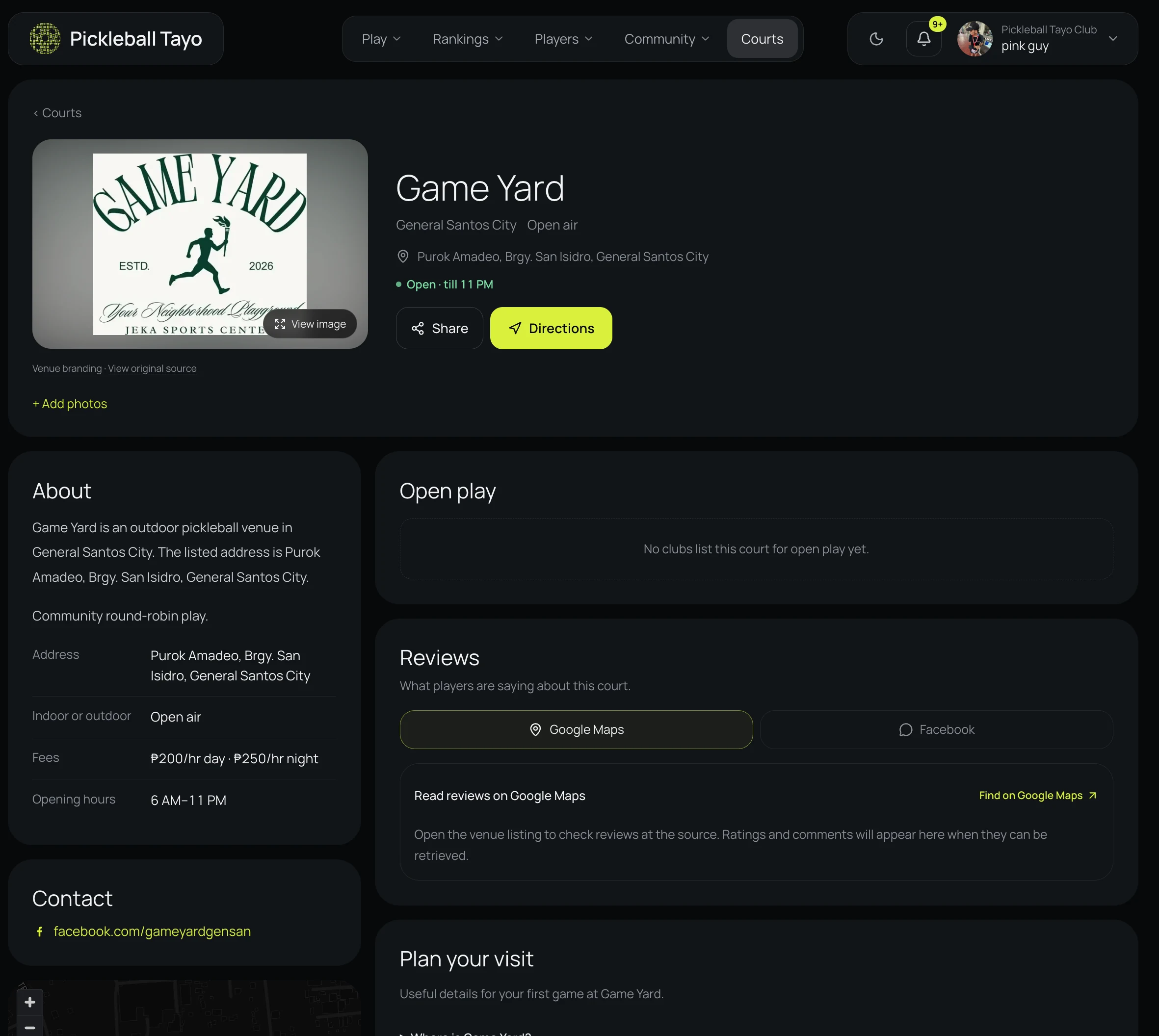
Open a venue listing

Select a court to see its details, location, photos, and other information provided by the venue.

04

List a court

If you manage a venue, choose Add a court and follow the sign-in prompt to submit a listing.

↗

Find and join open play

Search upcoming sessions, check the details, and reserve a spot.

Find open play
01

Browse upcoming sessions

Open Play → Open play. The page opens on Upcoming; use Past Open Plays if you want to review previous sessions.

02

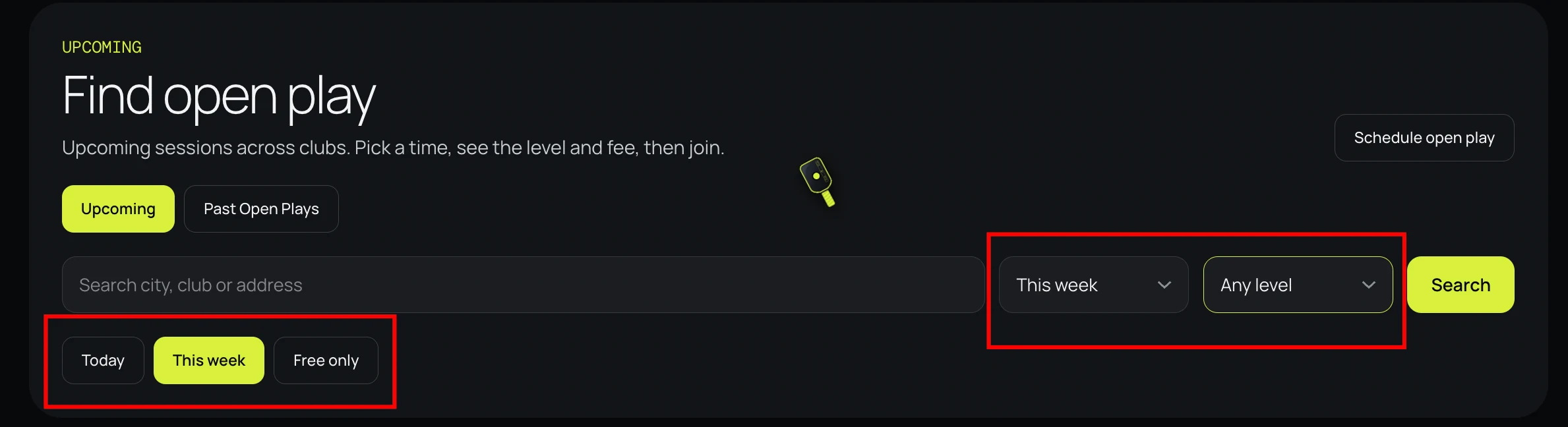
Search and filter

Search by city, club, or address. Choose a date range and level, or use quick filters such as Today, This week, and Free only.

03

Review a session

Open a session card and check its date, start and end time, level, fee, venue, and remaining spots before joining.

04

Join and complete checkout

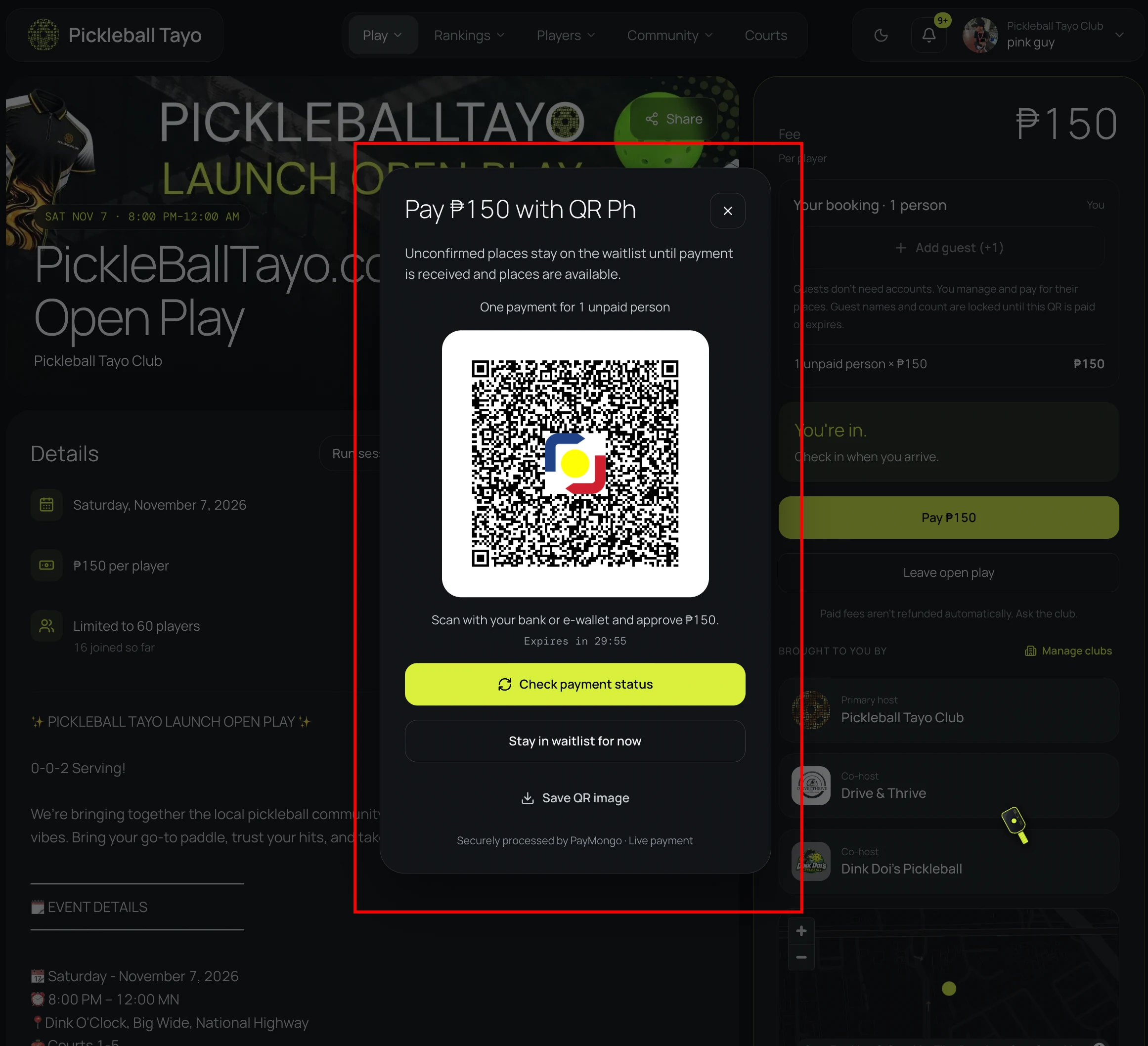
Choose Join. Sign in if prompted, review the booking and any fee, then complete the payment options shown on screen. For private open play, get the password from the host first.

▶

Run games with the open-play tool

Use the live game tool to organize a club queue, play casually with friends, or record one match.

Open Run open play
01

Choose how you will use it

On Run open play, choose I organize open play, Just playing with friends, or Single match. Pick the option that matches your session.

02

Set up the game

On the setup page, add a title and optional details or photo. Choose singles or doubles, select how teams are made, then add player names or paste a list.

03

Start or schedule

Review the player list and game settings. Choose Start to begin now, or Schedule this open play to set it up for later.

♧

Find and join a club

Browse clubs by city, then explore club activities and community.

Browse clubs
01

Browse clubs

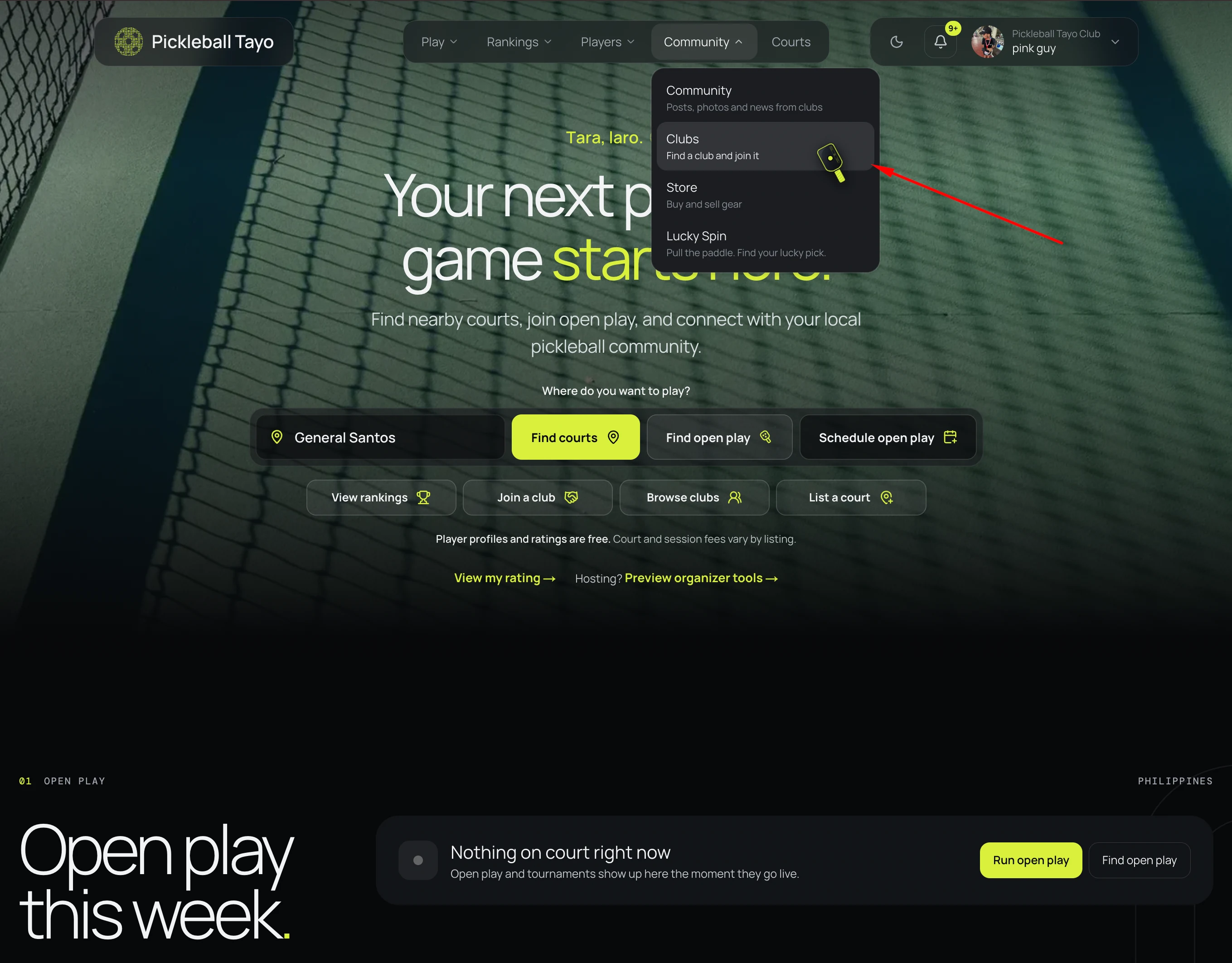
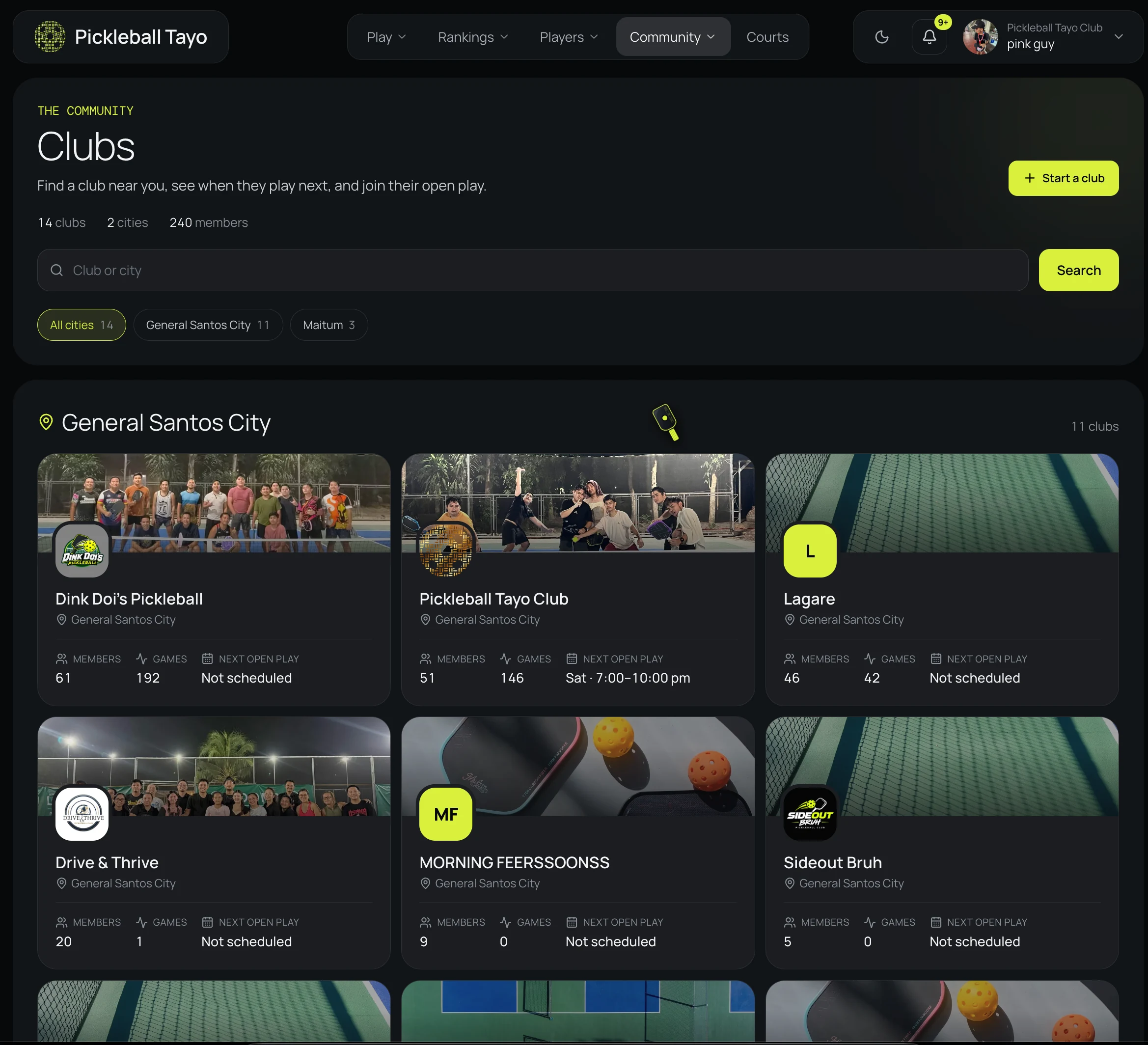
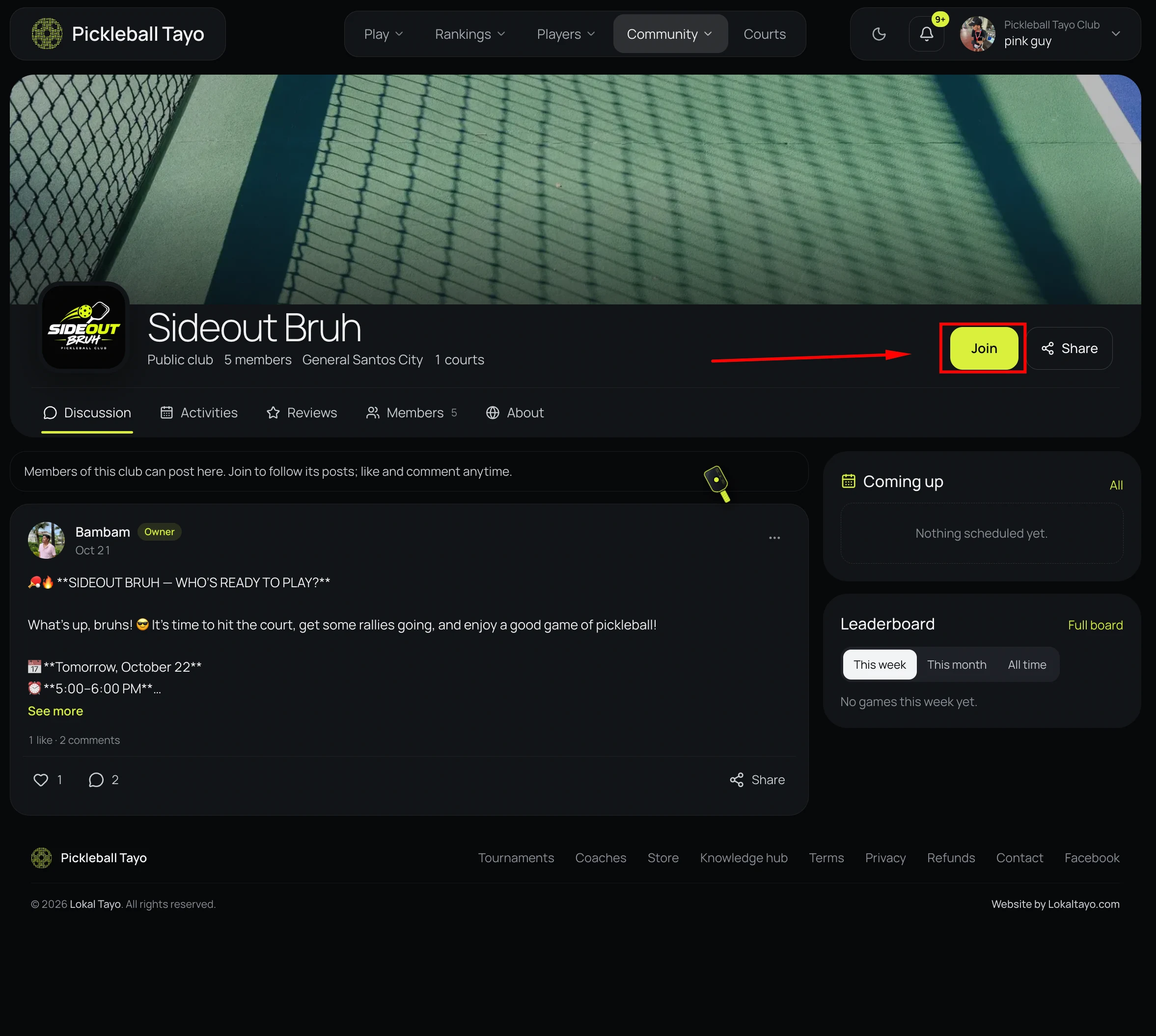
Open Community → Clubs. Search the directory or choose a city filter to find local clubs.

02

Explore a club page

Open a club to view its discussion, activities, reviews, members, and About information.

03

Join or start a club

Choose Join on the club page and sign in if prompted. To create a new club, choose Start a club from the directory and follow the sign-in prompt.

◎

Explore players and rankings

Find players, compare public profiles, and browse leaderboard filters.

Browse players View rankings
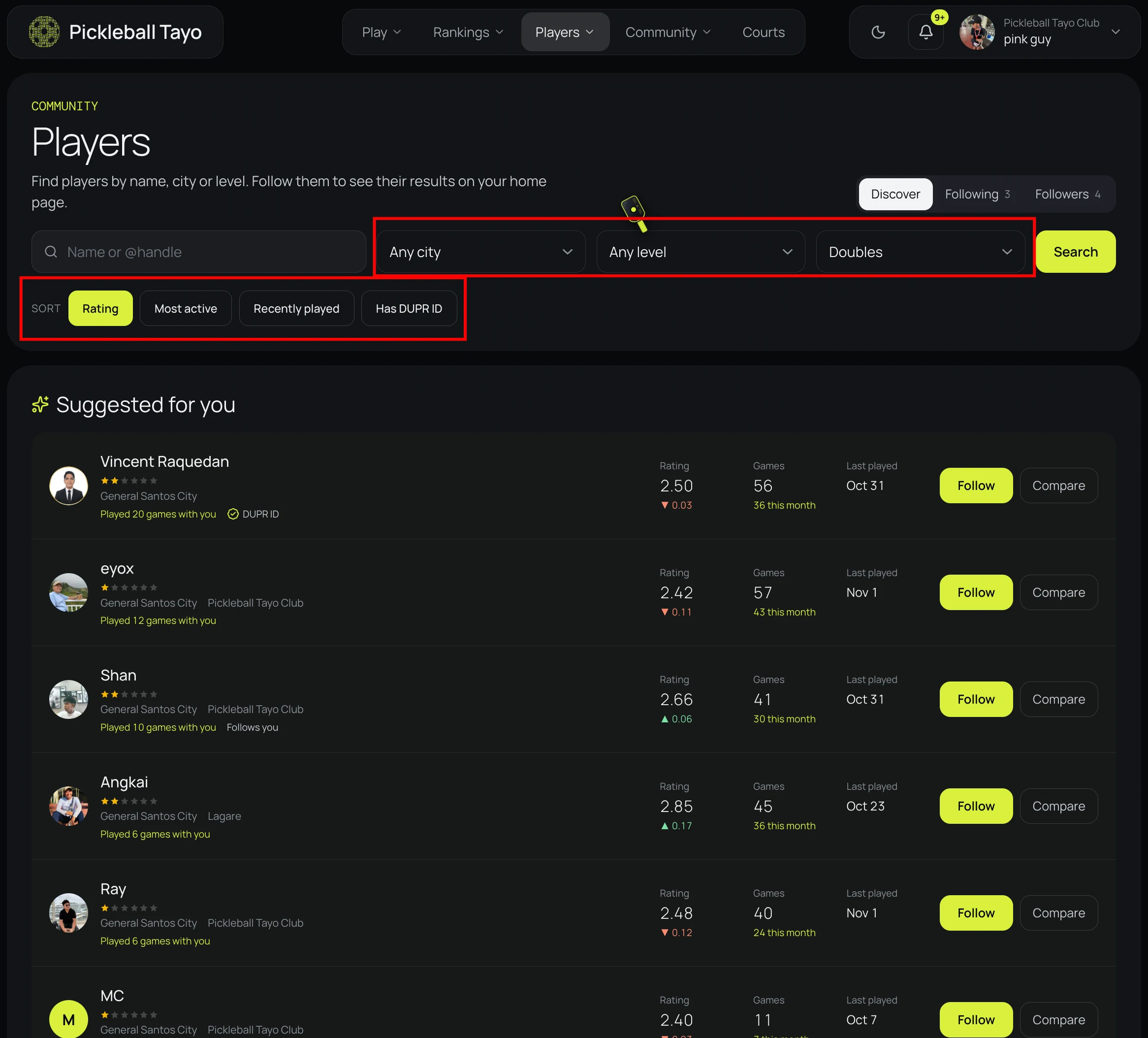
01

Search the player directory

Open Players and search by name. Use the directory filters to browse by rating, most active, recently played, or players with a DUPR ID.

02

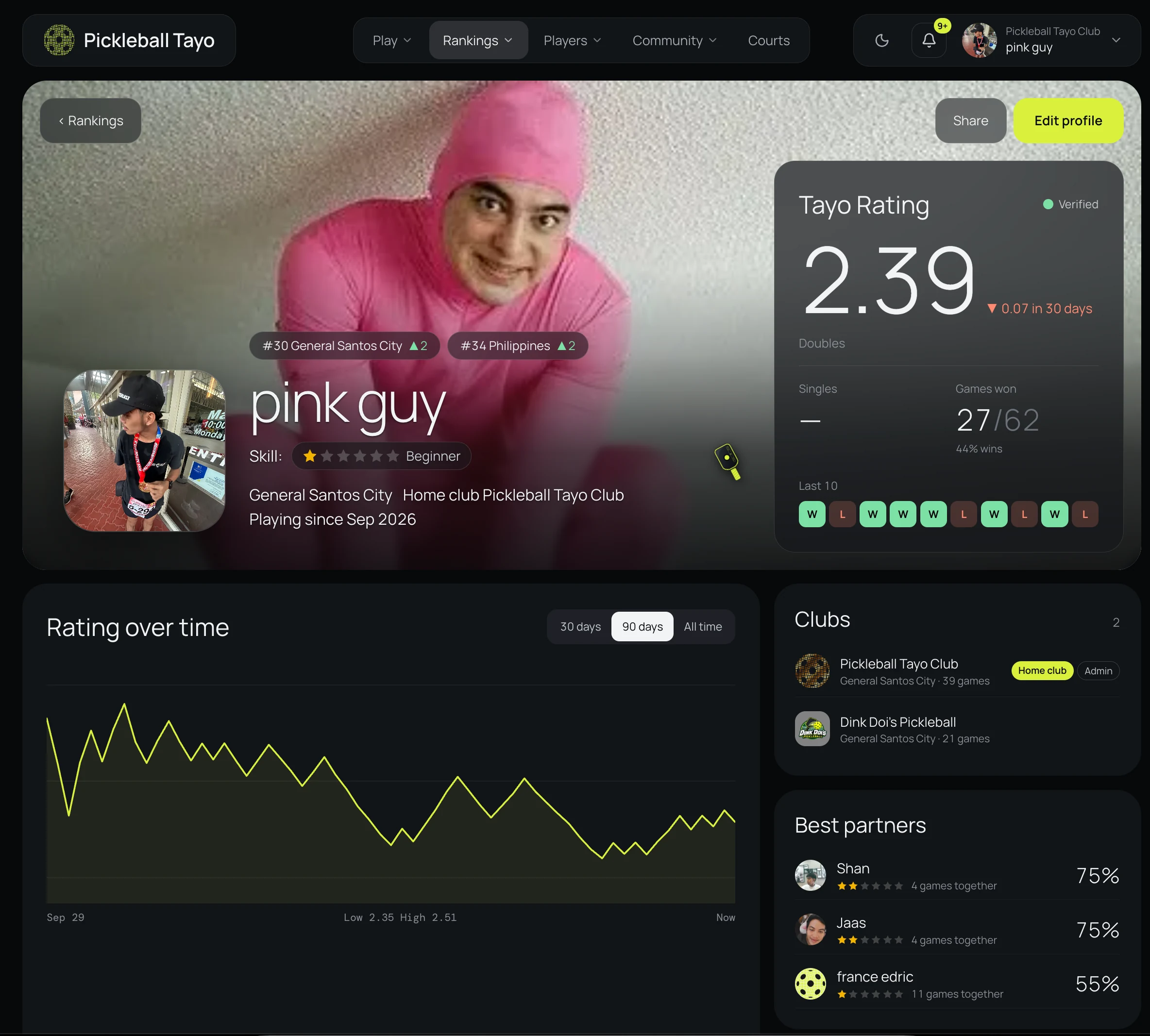
Open a player profile

Select a player to view the public profile information and recorded activity available there.

03

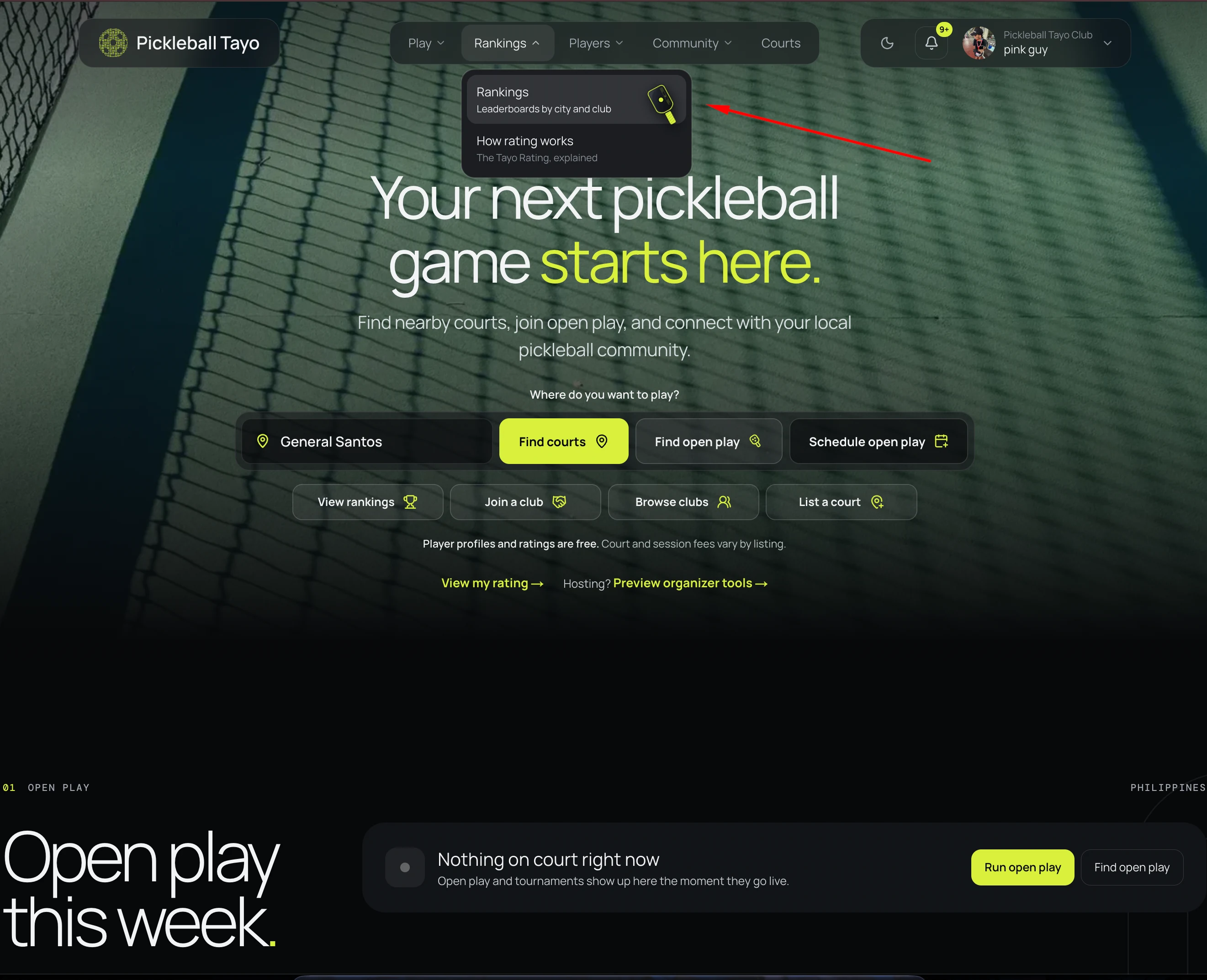
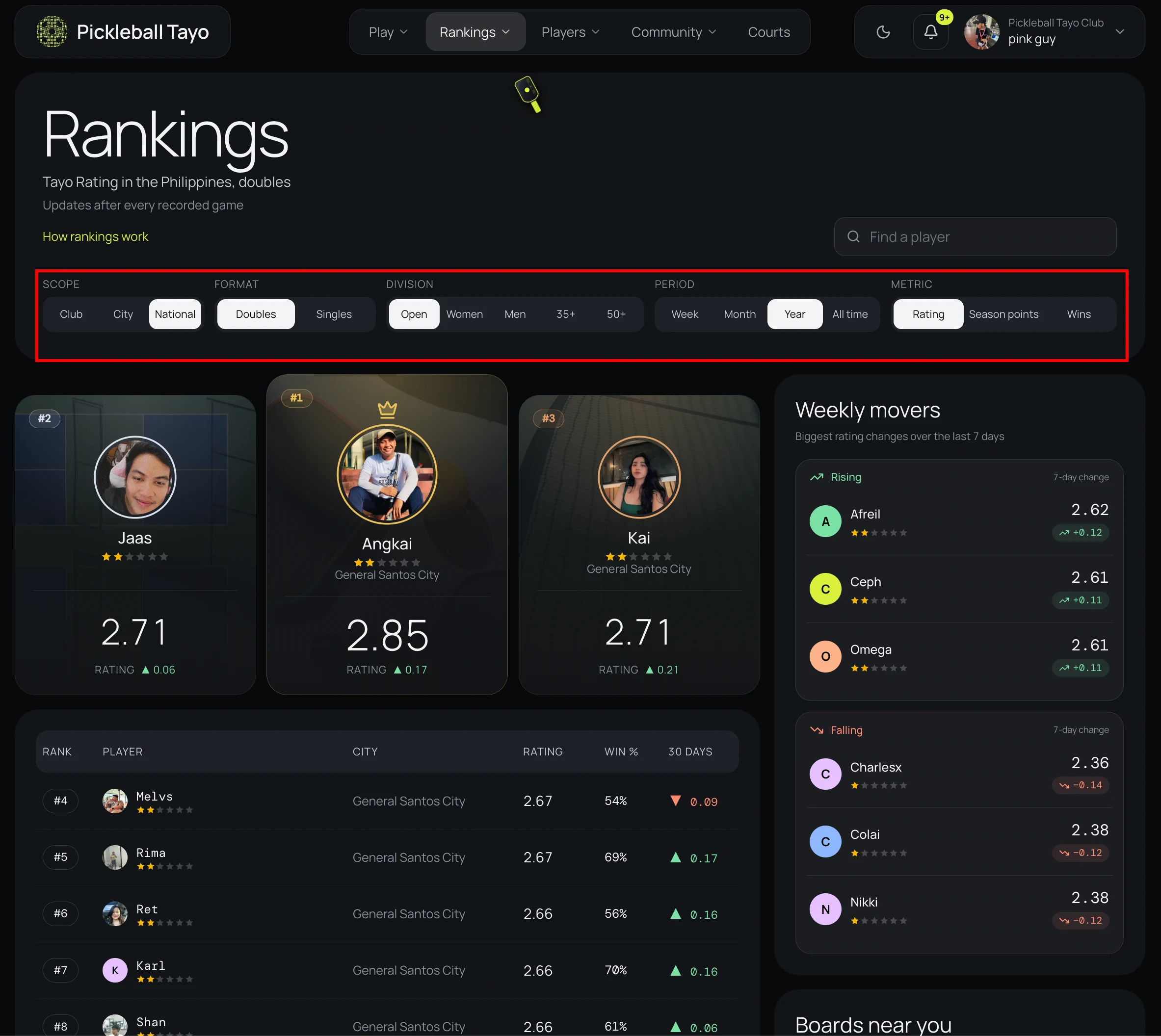
Filter the rankings

Open Rankings and choose a board such as National or City. Depending on the board, filter by singles or doubles, division, time period, or metric.

04

View your own rating

Choose View my rating to open your rating page. Sign in when prompted to view your account’s stats.

★

Browse tournaments

Use the tournament filters to look for events by location, month, and level.

Browse tournaments
01

Open Tournaments

Choose Tournaments from the site navigation.
02

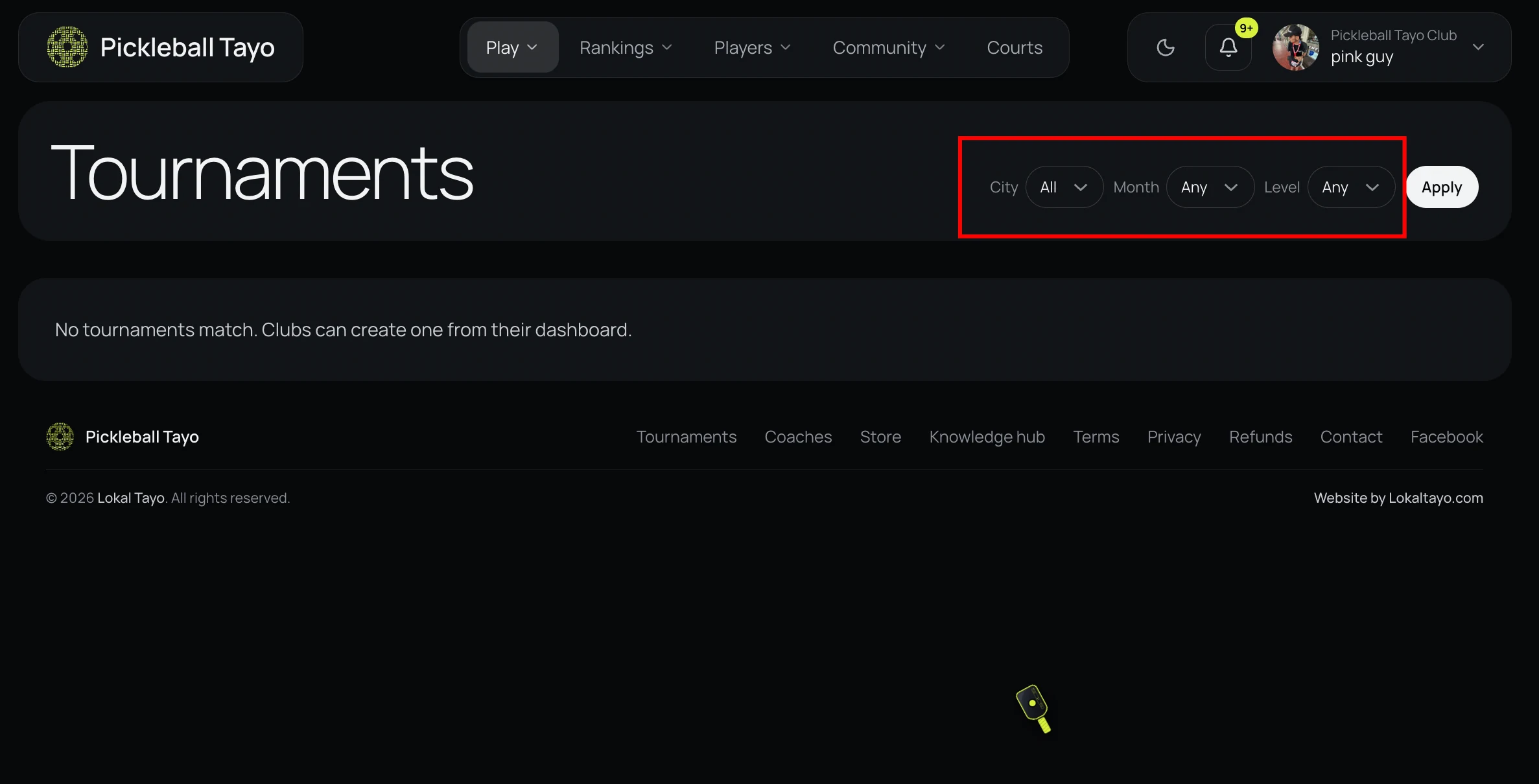
Set the filters

Choose a city, month, and level, then select Apply to update the tournament results.

03

Open an event

If an event is listed, open it and follow its event details for divisions, eligibility, and sign-up instructions.

+

Find a coach

Search the coach directory for instruction and clinics.

Browse coaches
01

Search the coach directory

Open Coaches and search the directory. Browse the available coach listings.

02

Open a coach listing

Choose a listing to review the coach’s information and any lesson or clinic details.

03

List yourself as a coach

Choose “I’m a coach” or “List yourself as a coach,” then sign in and follow the profile setup prompts.

✓

Make it easy to say yes

A few useful details help players feel ready to join.

📍 Exact courtVenue name, address, and court number if you have one.
🕒 Clear timingStart time, expected duration, and when to arrive.
🏓 Right levelChoose a level that matches the games you plan to play.